 OuduDesktop
A native desktop client for Odoo — Windows, macOS, Linux
For Odoo Community, Enterprise, Online and .sh.

Genuinely concurrent accounts
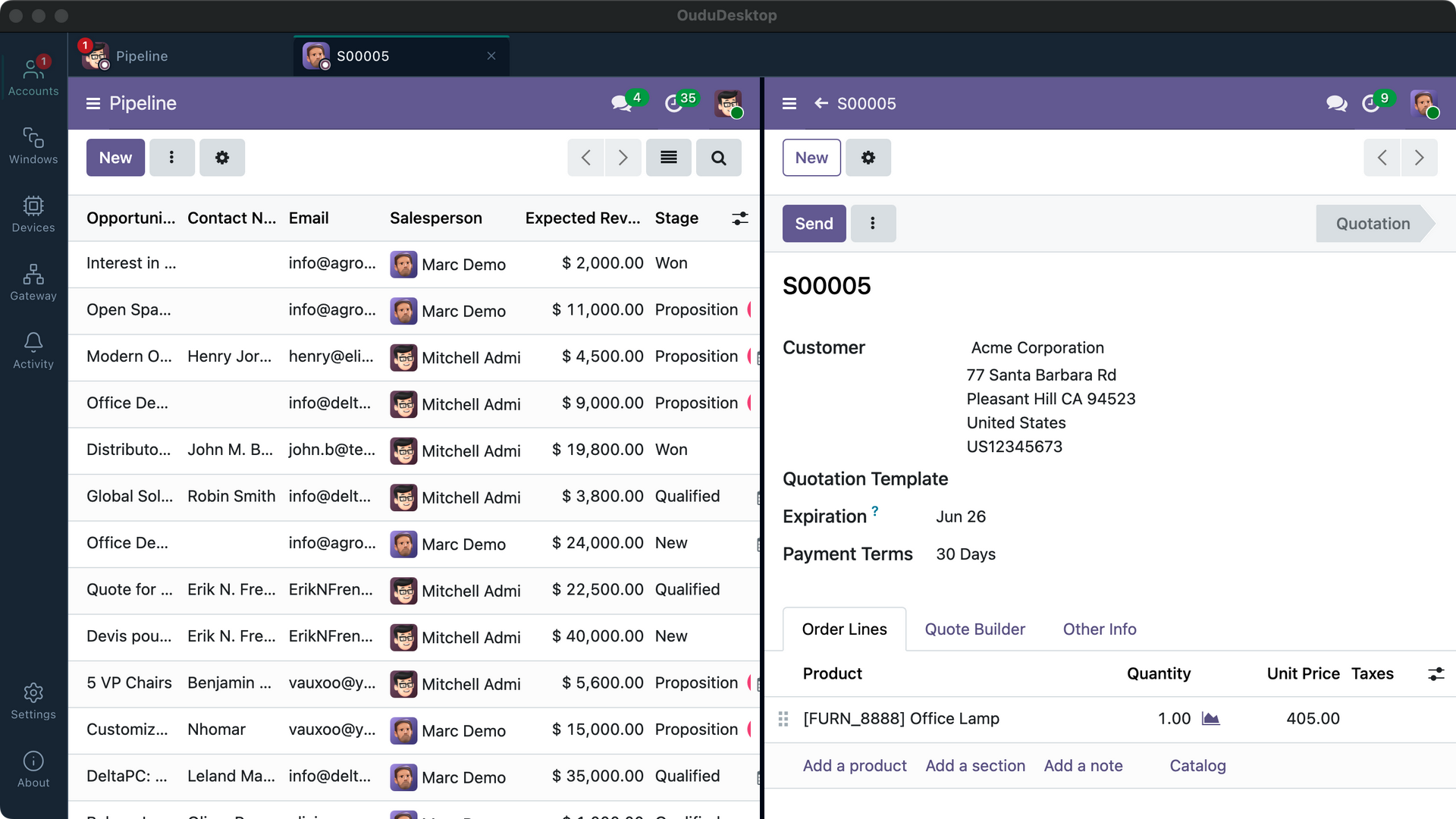
Every account gets its own session partition, and multiple tabs for the same account group automatically. Different accounts stay signed in and usable together. Detach or rejoin a group, move it across displays, and tile pages in main or secondary windows.
Native system integration
System tray, desktop notifications, global hotkeys, launch at login, unread badges and download handling. Dark mode, accent colors, Simplified Chinese, Traditional Chinese and English can follow the system or your settings.
Works with every Odoo
Verified against every Odoo release from 8 to 19, against real servers — the server version is recognized on connect. Not one line of your server changes, and no Odoo front-end code ships with us — assets always come from your own server. Intranet self-signed certificates and direct proxy bypass can be set per server.
Database management
Create, back up, restore, duplicate and delete databases, change the master password — without opening the server backend. Backups can include attachments; restores can be neutralized as test copies.
Install once, it updates itself
Checks on launch, downloads silently in the background, installs on exit; delta updates fetch only what changed. Store-channel installs are managed by the store.
Every OS, every chip
Native builds for Windows, macOS and Linux, in both Intel x64 and ARM64. Linux offers DEB and AppImage formats; the download button above already picked the right installer for your system.
One gateway, clear control
Manage desktop, HTTP/HTTPS, and LAN endpoints in one place. Enable printing, barcode, scale, and customer-display capability by protocol, with live status and usable addresses visible. All network endpoints start disabled.
On-site devices and printing
Manage printing, scanning, barcode input, weighing, cameras, audio, and displays in Device Center. The gateway exposes desktop and LAN capabilities to Odoo by protocol.
IoT Box protocol support
Reuse the fixed IoT Box protocol to bring printing, barcode input, weighing, and HDMI customer displays together with local devices for one place to connect, test, and manage. No Box modification is required, and Enterprise pairing is not a prerequisite.
Two accounts, both working at once
Every account has an independent session. Even accounts on the same Odoo server can open multiple tabs, group automatically, work side by side, or move together to another display.
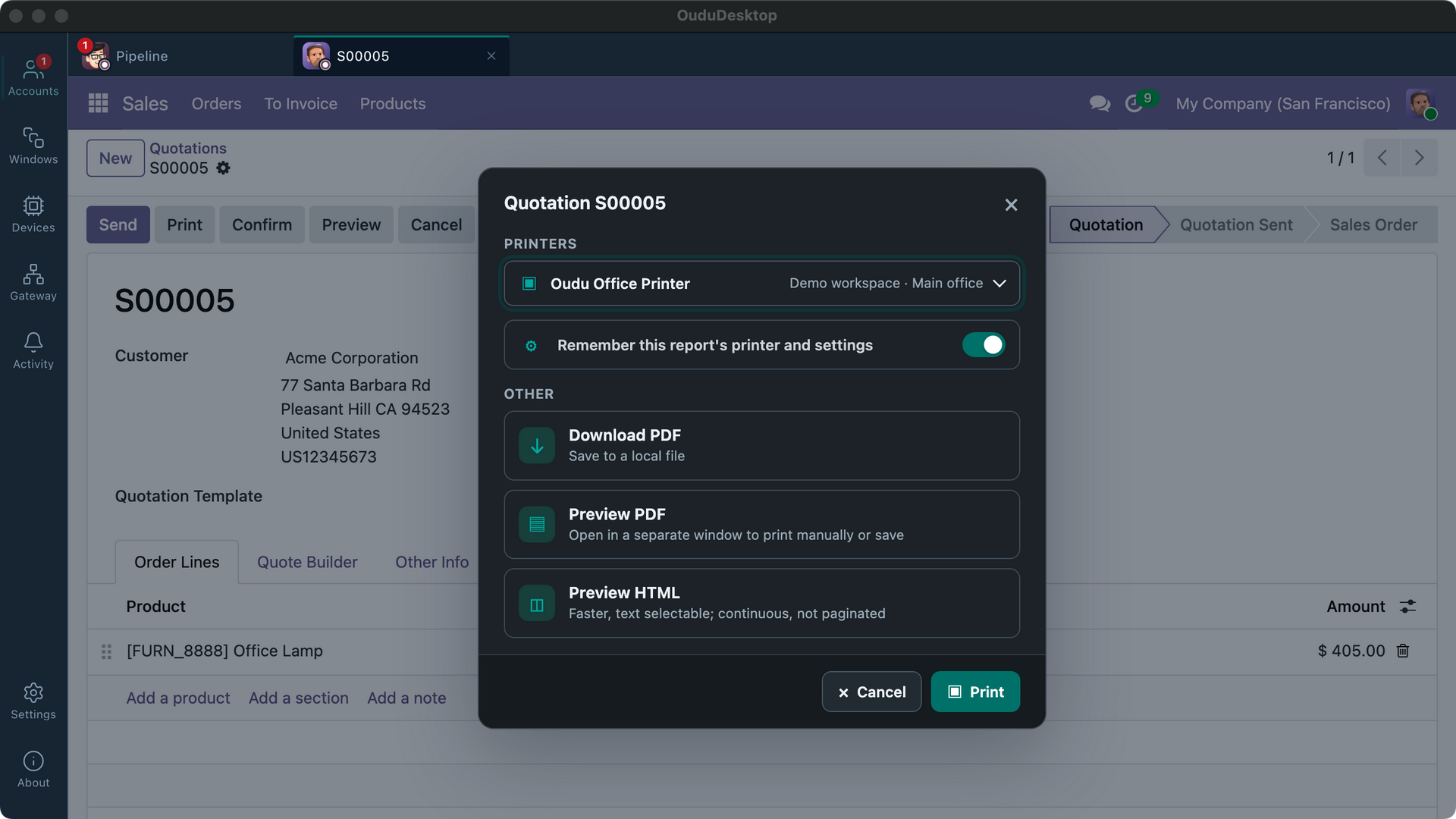
Send reports, receipts, and labels to the right printer
OuduDesktop connects local queues, network RAW printers, and IoT Boxes, then sends each Odoo report, POS receipt, or label to the exact device for that job.
One-click printing
Pick a printer right on the Odoo report page. No printer around? Preview a PDF or continuous HTML, or fall back to Odoo's native download.
Receipts and labels
POS receipts support paper width, raster width, cutting, and tail feed. Labels use TSPL, ZPL, or EPL as the printer allows, with calibration test pages before real work.
Exact routing and presets
Route reports by account, company, or template. Read-only printer addresses send POS receipts and preparation tickets to one exact device. Each target keeps its own copies, orientation, and media preset.
Tracked without duplicates
Every print is an individual job with queue status and receipts, and can be explicitly cancelled. An uncertain result never triggers an automatic retry, avoiding duplicate output.
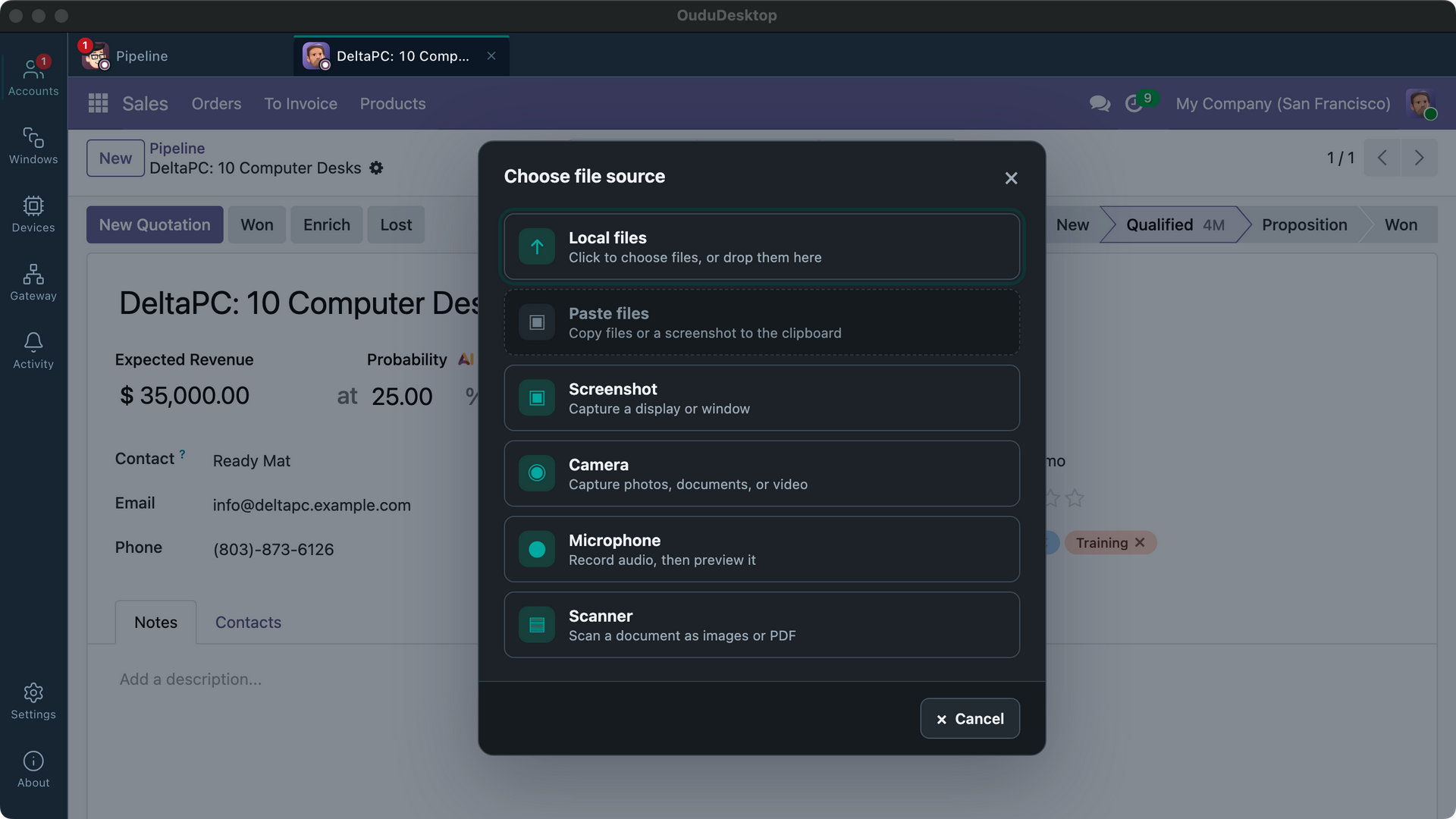
Send local content straight to Odoo
At an Odoo file upload, OuduDesktop shows only the local sources compatible with that field. Content stays in a local preview until you choose Use, then goes directly to your Odoo server.
Files, paste and drop
Keep the system file picker, paste files from the clipboard, or drop them straight onto the Local files source.
Screen and window capture
Choose a display or a window, preview it, crop the area you need, then use it for the current upload.
Photos, video and audio
Use the current camera or microphone when its output matches the upload field, then review the result before confirming.
Scanning and document capture
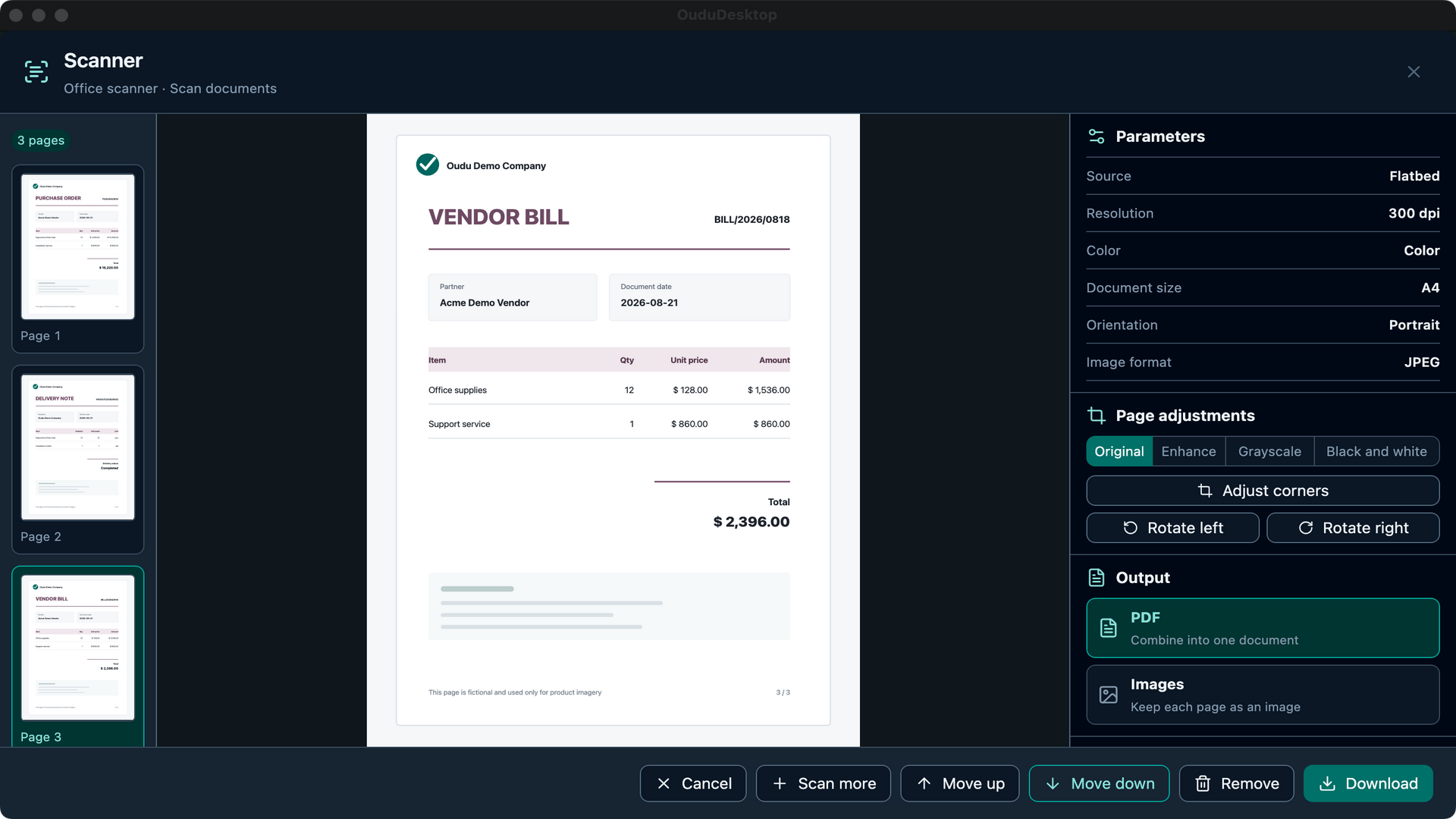
Scanners and cameras share one multi-page workbench: add, select, remove and reorder pages, then output multiple JPEGs or one PDF as the upload requires. No scanner? Capture documents in a row with the camera — every shot is auto-cropped and perspective-corrected.
Notifications and tasks, handled in one place
Activity Center brings together notifications and print jobs from accounts, windows, devices and local capabilities, so important items remain available when you are ready to act.
One inbox
Odoo messages, downloads, updates, re-login requests and device problems that need to persist are presented together.
Tracked jobs
Filter print jobs by In progress or Needs attention. When a driver provides a stable receipt and supports cancellation, cancel safely from here.
Bulk actions by source
Filter by account, device, download and other sources, then mark or clear the current source in one action.
Jump to the issue
Open the related account, device, print job, subscription or diagnostics location directly from a notification.
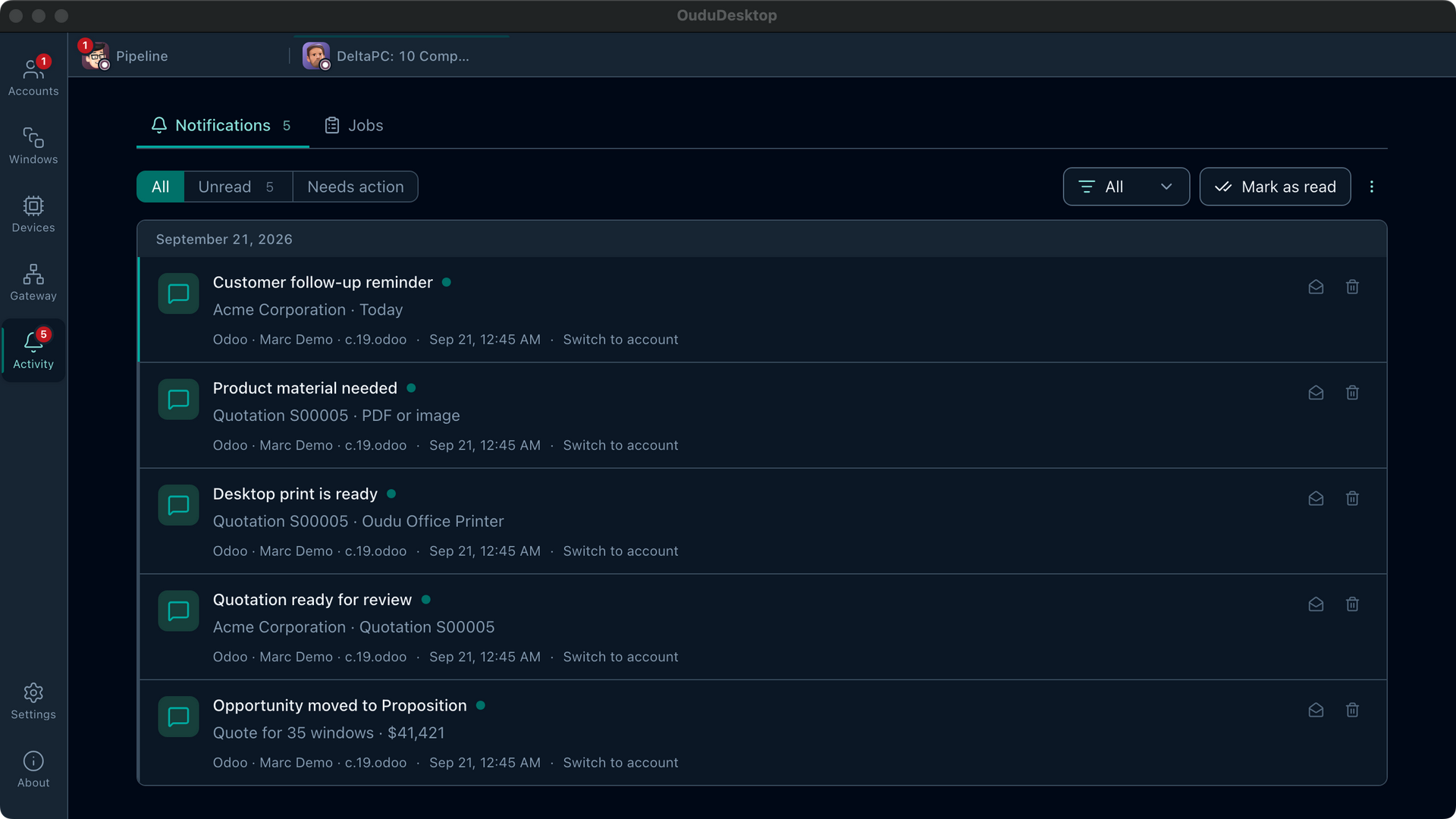
One gateway for desktop and LAN devices
Gateway Center manages desktop access plus HTTP, HTTPS, and LAN entry points, then exposes printing, scanning, weighing, and customer-display capabilities by protocol. Every network entry point stays off until you enable it.
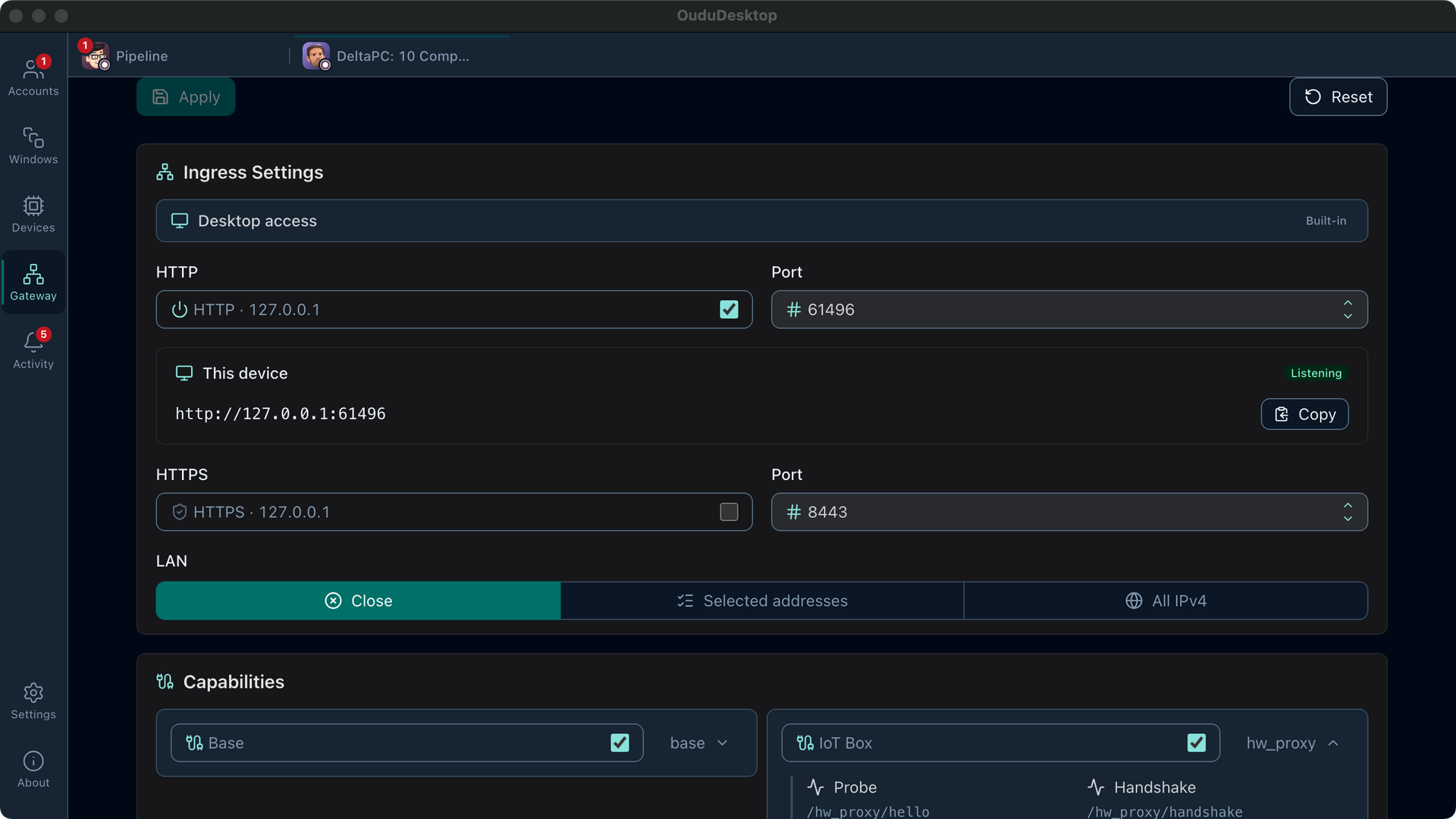
Scanners, scales, and displays in one Device Center
Local and IoT Box barcode scanners, scales, and displays share one inventory where you can check their source, protocol, and availability before testing them.
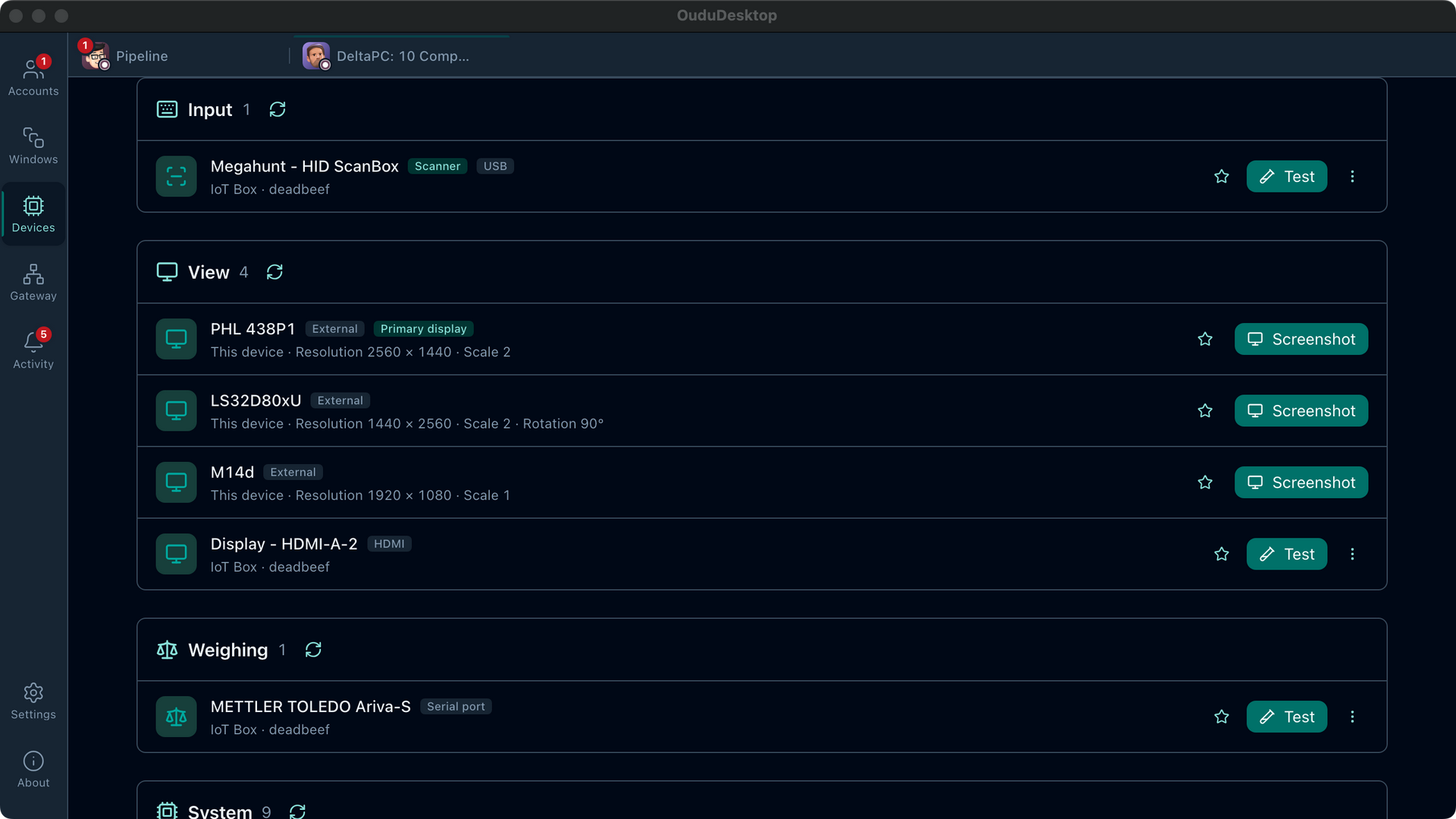
Send POS orders to a customer display
Validated with Odoo 18/19 Community: the current order and every later change appear live on another local display or an HDMI display attached to an IoT Box.
Live order updates
The current order is replayed as soon as the display opens. Products, quantities, discounts, taxes, payments, and clearing continue to update.
One picker for local and IoT
The picker lists physical displays and IoT Box HDMI displays, then recommends a target that the POS is not already using.
Fullscreen or windowed
Open a local target fullscreen or with one of three window presets. An IoT HDMI display keeps a read-only fullscreen presentation mode.
Managed from open to close
Reload, test, return home, or close from the tab, Window Center, or Device Center. The latest action determines what the display shows.
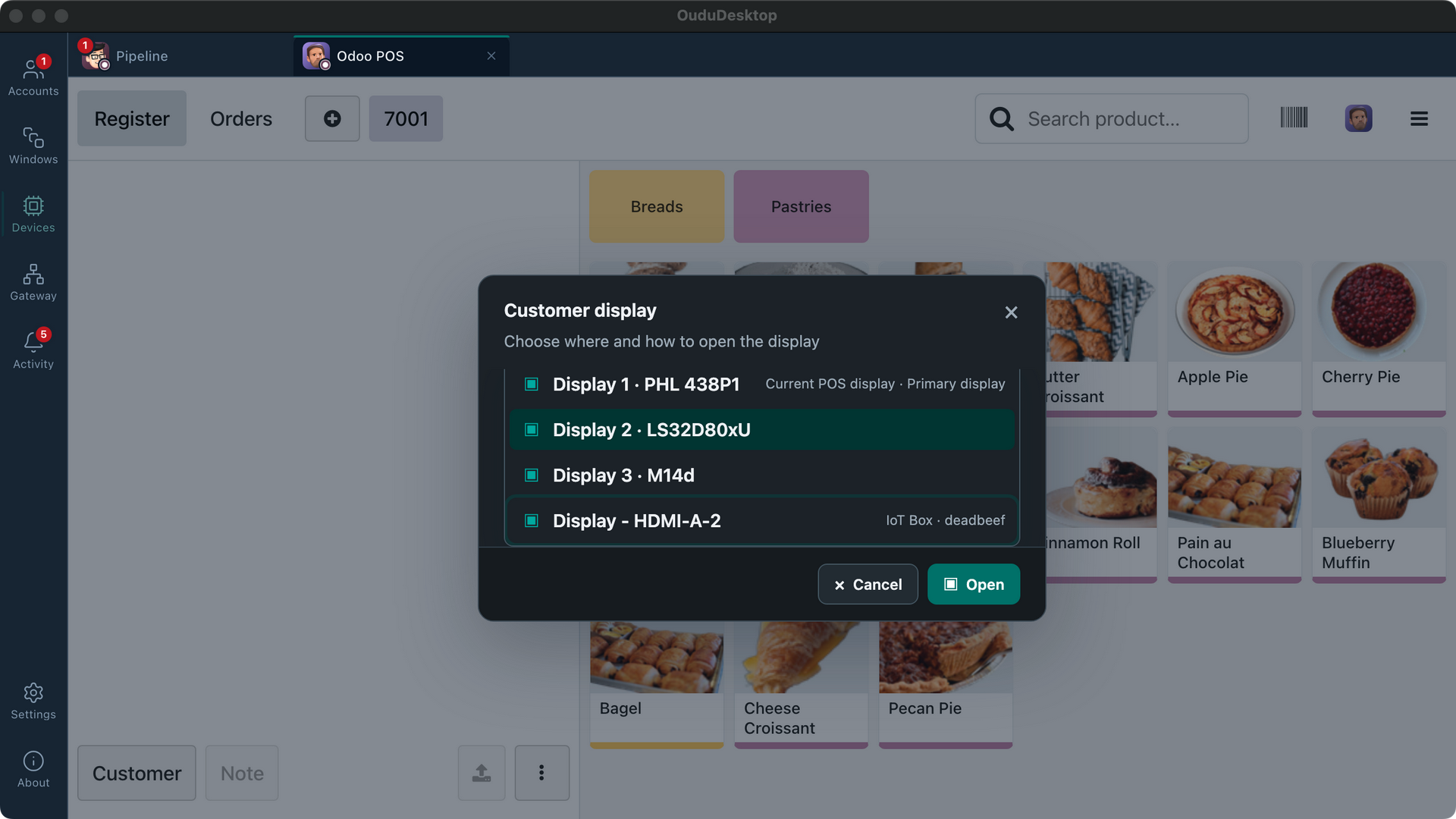
Optional free server integration
No server module is required to connect and use Odoo 08–19 with OuduDesktop. On Odoo 13–19, you can optionally install the free official modules to manage instance identity, report printing and file upload policies from Odoo Settings.
Frequently asked questions
Answers about compatibility, server changes, local printing, file capture and data handling.
Which Odoo versions and deployment types are supported?
Connection, sign-in and day-to-day use support Odoo 08–19 across Community, Enterprise, Odoo Online and Odoo.sh. Database creation, backup and restore support Odoo 09–19 when the server exposes its management interface.
Do I need to modify Odoo or install a server module?
No server module is required. OuduDesktop connects to and works with Odoo 08–19 without modifying server source or bundling Odoo front-end code. On Odoo 13–19, the free official modules are optional enhancements for centrally managing instance identity, report printing and file upload policies; custom and third-party modules continue loading from the Odoo site.
Is OuduDesktop an official Odoo product?
OuduDesktop is an independent desktop client developed by Guangdong Oudu Software R&D Center. It is not affiliated with, sponsored by, or endorsed by Odoo S.A. Odoo is a trademark of Odoo S.A.
Can multiple accounts on the same server stay signed in?
Yes. Every saved account has an independent session partition, so different Odoo users on the same server can stay online and work side by side. Cookies and caches are not shared between accounts.
Is an IoT Box required for local printing?
No. Pick a printer on the computer directly from an Odoo report, preview the PDF, or keep Odoo's native download. Reports assigned to an IoT Box printing device continue through Odoo's existing flow.
Which Odoo versions and displays work as a customer display?
Odoo 18/19 Community is currently validated with another physical display on this computer or an IoT Box HDMI display. Customer display data does not pass through an Oudu server.
Which local sources can I upload to Odoo?
Alongside the system file picker, you can paste or drop files, capture a display or window, take photos or videos, capture documents in a row with the camera, record audio, and scan multiple pages. Only sources available on this computer and allowed by the current field format are shown.
How are passwords, sessions and business data handled?
Your Odoo password is used only for sign-in and is never written to disk. Session cookies live in separate Chromium partitions per account and use system secure storage when supported by the platform. Business data travels directly between this computer and the Odoo server you selected.
Are screenshots, scans or recordings uploaded or saved automatically?
No. Captured content first stays in workbench memory and is released when you cancel, finish or close it. It reaches the current Odoo upload only after you choose Use; Download or Copy hands the result to your chosen location or the system clipboard.
Which operating systems and processors are supported?
Windows 10 or later and macOS 11 Big Sur or later are supported. The current validated Linux baseline is Ubuntu 24.04 LTS. x64 and ARM64 builds are available for all three platforms; this page recommends the installer for the current device, and All downloads remains available for manual selection.
All downloads
DEB is recommended for Linux. Existing AppImage installations can download the matching compatibility package here.
| Platform | Format | File | Size | SHA-512 |
|---|---|---|---|---|
| Loading release information… | ||||
Requirements & first launch
Windows 10 or later
If “Windows protected your PC” appears, choose More info → Run anyway. Later automatic updates will not show this prompt.
macOS 11 Big Sur or later
The installer is notarized by Apple — just download and open it. The Intel build also runs on Apple silicon via Rosetta.
Linux (Ubuntu 24.04 LTS)
For a new install, open the DEB or run sudo apt install ./OuduDesktop-*.deb. Existing AppImage installations can get the matching compatibility package from All downloads. Use DEB for a new Ubuntu 24.04 installation.